For companies and event organizers
Your event team, from the first role to the last receipt
Create the event and set the roles you need, receive requests from organizers, hosts and every other role, and accept the people who fit. You follow all of it from your phone.
-
 Coming soon
-
 Coming soon


Set up your event
-
Register your company
Its name, registration number, sector and city, with the commercial register, the national address and the tax registration certificate. Wafy’s team reviews them and you are notified of the result.
-
Create the event and its roles
Name, description, place on the map, dates and pictures. For each role: headcount, check-in and check-out times, daily pay, and requirements such as level, experience and uniform.
-
Add the event supervisor
A name and a mobile number are enough. Once the event is approved, the supervisor gets a text message explaining how to sign in.
Publish it and build your team
-
Transfer and upload the receipt
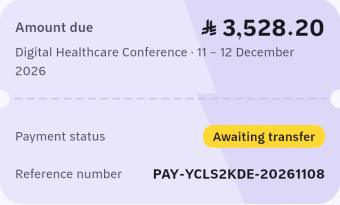
The app shows the amount due. Transfer it to Wafy’s bank account and upload the receipt as an image or a PDF; once it is confirmed, the event is published.
-
Review applicants with their levels
Each request opens the applicant’s profile, with their level: bronze, silver or gold.
-
Accept the people who fit
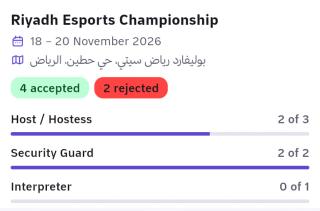
Accept or reject each request and watch every role fill. When all roles are filled, applications close automatically.
Event day
-
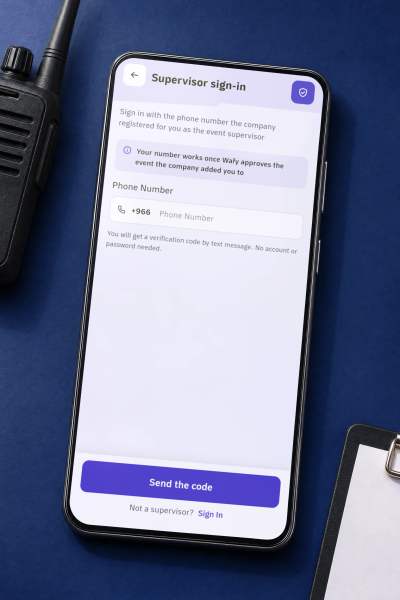
The supervisor signs in with a phone number
No registration and no password. The supervisor sees their events and each team, by name and role.
-
A chat for the team
The supervisor opens it for accepted collaborators: text, emoji and voice notes. It closes after the event ends.
-
Attendance, recorded once
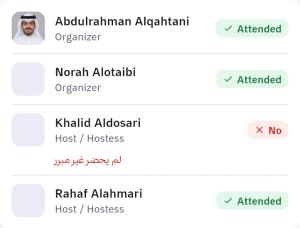
After the event ends, the supervisor marks each collaborator «Attended» or «No» with a reason, and you see everyone’s status.
After the event
-
Rate your team
Rate each collaborator on appearance, interaction, punctuality, behaviour and following the rules. They rate your company too.
-
Your financial record
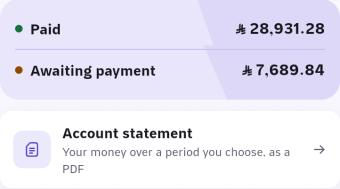
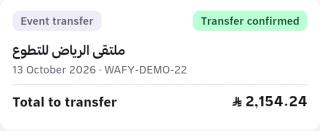
Every transfer with its status and receipt: under review, confirmed, or rejected with the reason.
-
A PDF account statement
Download your transactions for any period you choose, and share it.
Want your event at the top of the list?
Request a «featured ad» for your event in the app and it shows first in the individuals’ event list. It becomes active once its transfer receipt is confirmed.
Questions from companies
Email support How do I register my company on Wafy?
With a Saudi mobile number verified by a one-time code, then the company’s details and documents: the commercial register, the national address and the tax registration certificate. Wafy’s team reviews them and notifies you of the approval, or of the reason for a rejection.
How do I pay? Is there card payment?
Payment is by bank transfer to Wafy’s account; there are no card payments in the app at the moment. The app shows the amount due, and after the transfer you upload the receipt as an image or a PDF.
When does my event appear to individuals?
After Wafy’s team reviews it and confirms the transfer receipt. If a receipt is rejected, you get the reason and can upload a new one.
Can I see an applicant’s level before accepting?
Yes. Every request shows the applicant’s level: bronze, silver or gold. You can also set the level each role requires from the start.
What does the supervisor do? Do they need an account?
No account and no password. The supervisor signs in with the mobile number you registered for them and a one-time code, sees their events and teams, runs the team chat, and records attendance after the event ends.
How do I know who attended?
After the event ends the supervisor records the team’s attendance once, and each collaborator’s status shows on the event page to help with your ratings.
Your next event starts here
Register your company in the browser now. The mobile app is on its way.
- Coming soon
- Coming soon